Secrets
A workspace is text in a git repository, so a password written into it is a password in the repository. secret(...) marks a value as private: it is replaced with bullets everywhere Stampdrill prints the request that used it. Where the value itself is written is a separate decision, and the more important one.
Start with a login. The user name is the same for everyone on the team, so it stays in the shared file. The password does not, so it goes in environment.local.stamp, which sits beside it and is never committed.
# environment.stamp, committed
vars {
  baseUrl = "https://dummyjson.com"
  username = "emilys"
}
# environment.local.stamp, yours alone
vars {
password = secret("emilyspass")
}# login.stamp
### Log in
POST {{baseUrl}}/auth/login
Content-Type: application/json
{ "username": "{{username}}", "password": "{{password}}" }
> assert status == 200
> save token = body.accessTokenBoth files are read, the local one second, so a name set in both takes the local value. The request does not know or care which file a name came from. The last line uses save rather than set: set keeps a value for the rest of this run, save keeps it and writes it to environment.local.stamp, so the next run starts with the token already in hand.
stamp run login.stamp --verbose

→ POST https://dummyjson.com/auth/login  login.stamp › logIn
  Content-Type: application/json
  { "username": "emilys", "password": "••••••" }
  200 OK  113 ms  930 bytes
Wherever the request is shown, the password is bullets. The user name is not, because nothing asked for it to be.
The three places a value can live. Pick by who else needs it.
environment.stamp | shared with the team, committed, reviewed like any file |
environment.local.stamp | this machine only; the app adds it to .gitignore the first time it writes it |
getenv("NAME") | nothing written down at all, which is what a build server wants |
vars {
  apiKey = secret(getenv("ORDERS_API_KEY"))
}
When that environment variable is not set the value is empty and the request still goes out, so the failure arrives from the server rather than before the request. See Running in CI for setting them on a build server.
That is the short version. The rest is what masking does and does not reach.
What is covered. A value passed through secret(...) is replaced wherever it appears in the request as Stampdrill prints it: the URL, the headers, the body, the message of a failed assertion, and anything a print line writes. A token fetched by @auth oauth2 is treated the same way without being asked. The response is not masked on the command line, so a login that answers with the token it issued shows it; the app does mask responses, and hides more besides.
What is not. A key sent in the query string is part of the URL, and a URL travels further than a header does: into the server's logs, and into the HTML report a test run writes, where it appears in full. Put a key in a header when the API allows it.
Marking a value where it is used. secret(...) is a function, so it also wraps a name that was declared somewhere plain. This is how a value that arrives from elsewhere, such as an imported collection, is covered without moving it first.
GET https://api.example.com/orders
X-API-Key: {{secret(apiKey)}}
Seeing the real value. Masking is for the screen, not for the wire; the request always carries the real value. To read it back while debugging:
stamp run login.stamp --show-secretsWhat save writes. save name = value in a response script stores the value for every later request, and writes it into environment.local.stamp, in the vars block for the dimension values that were selected when it ran. The login above leaves this behind:
# environment.local.stamp, after the login ran
vars {
  password = secret("emilyspass")
  token = "eyJhbGciOiJIUzI1NiIsInR5cCI6IkpXVCJ9…"
}
The token is written out in full, not wrapped in secret(...), which is one more reason that file stays out of git. --no-save runs without writing it.
Both values are hidden when the resolved variables are listed. password because of secret(...), token because of its name: a name containing secret, token, password, passwd, auth, bearer, apiKey, api_key or credential is hidden on sight. A name that contains none of them is printed in full, key and sessionId among them, so a value that must not be read belongs in secret(...) rather than behind a careful name.
stamp env .

Variables
  readJson  readJson()             files
  readText  readText()             files
  password  ••••••                 environment.local.stamp vars *
  token     ••••••                 environment.local.stamp vars *
  baseUrl   https://dummyjson.com  environment.stamp vars *
  username  emilys                 environment.stamp vars *
In the app
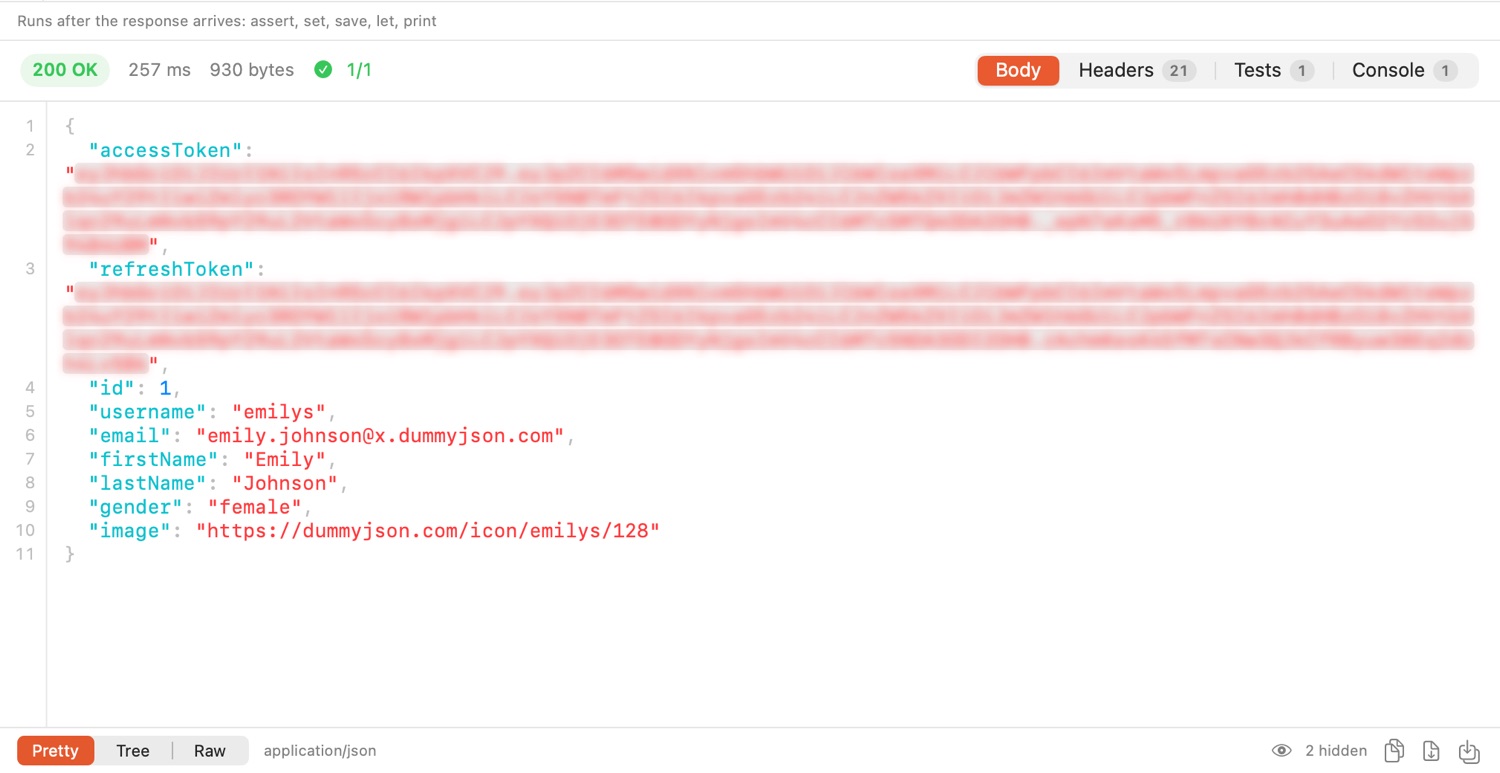
- Send a request whose answer carries a token. The body arrives with the token blurred. The app hides what it recognises as private whether or not you marked it: fields named like credentials, JSON Web Tokens, and anything that came from
secret(...). - Click one blurred value to read that one, and click it again to hide it.
- Click the count at the foot of the body, 2 hidden beside an eye when two values are blurred, to show all of them at once. Request ▸ Show Secrets (⇧⌘H) does the same from the menu, and Settings ▸ General has the switch that stops the blurring for good.
- In the inspector, set Stored in to This Mac before adding a variable that holds a password. Shared writes to
environment.stampand This Mac toenvironment.local.stamp, and the line under the switch names the file and thevarsblock it will go into.
On the command line a response is printed as it arrived, so a login that answers with a token shows it. The window is the half that is read over your shoulder and shared on a call, so it hides values in responses as well as in requests, and a blurred value is one click from being read when you need it.
Next: Authentication for turning these values into a signed-in request, Variables and dimensions for a different password per account, and Running in CI for a machine that has no local file at all.