Reading the response
Everything that came back sits in the lower half of the window: five tabs and a row of buttons under the body. Knowing which view to reach for is most of what makes a response quick to read.
Run something with a body worth looking at.
### List posts
GET https://jsonplaceholder.typicode.com/posts?_limit=5

> assert status == 200
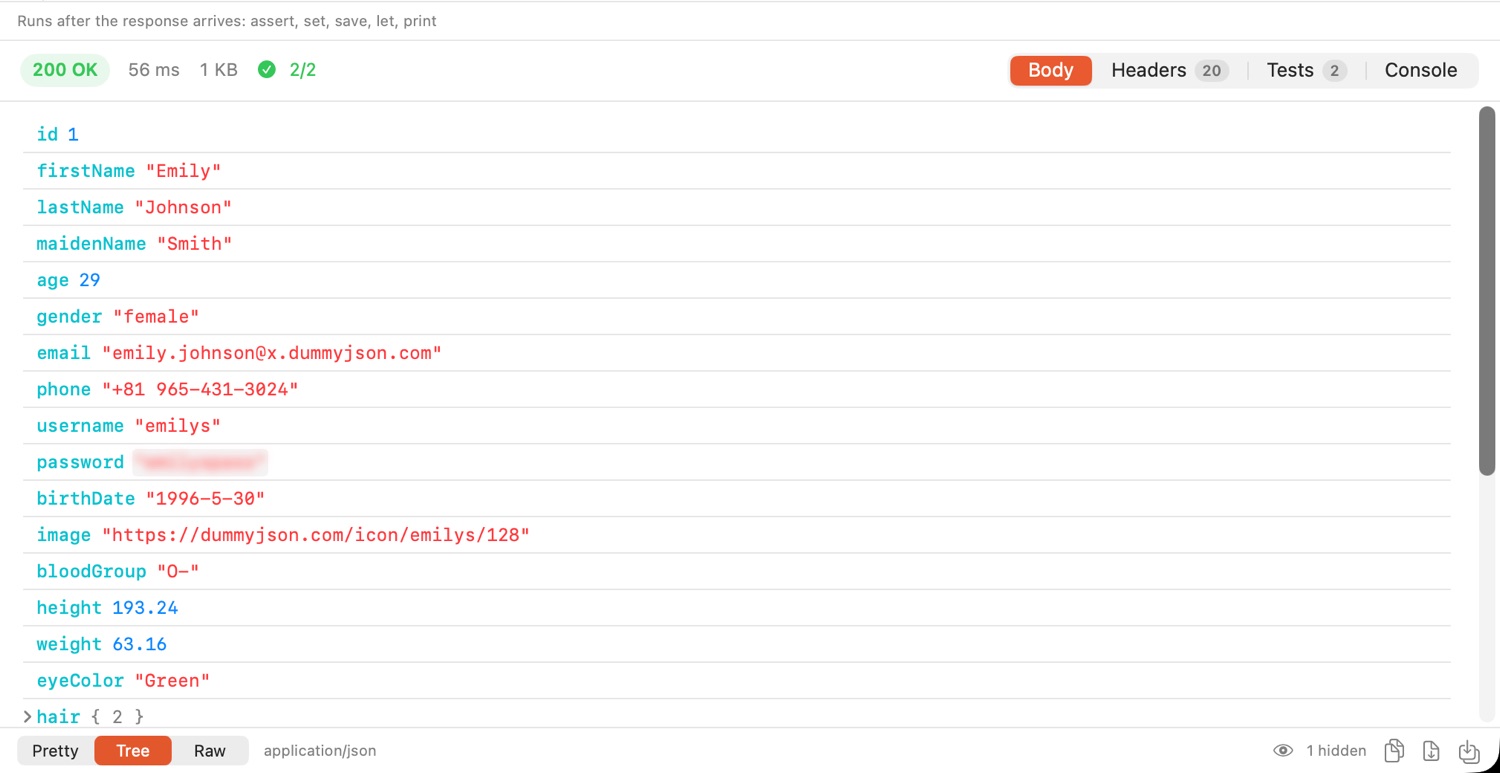
Press ⌘↩. A bar appears above the response with the status, how long the request took, how many bytes came back and, when the request has a script, how many assertions passed out of how many. That last one is a button, and it opens Tests. The tabs are on the right of the same bar.
| Body | what came back, in whichever view suits it |
| Headers | the response headers, as names and values |
| Tests | each assertion with a tick or a cross, and its message under it |
| Diff | what moved since an earlier run; it appears once the request has run twice |
| Console | what print wrote, under the request line, with any error in red |
For a WebSocket or an MCP session, Body becomes Messages and shows the conversation as a timeline instead.
Most of the time goes in Body. The buttons along the bottom are the views that make sense for what arrived, so JSON and a PNG are not offered the same ones.
| JSON | Pretty, Tree, Raw, and Table when the JSON is shaped like rows |
| CSV, and form bodies | Table, Raw |
| XML | Pretty, Raw |
| HTML | Preview, Raw |
| SVG | Preview, Pretty, Raw |
| Images and PDFs | Preview, Hex |
| Plain text | Raw, Hex |
The choice is remembered per kind of body, so once JSON has opened as a tree it keeps opening as a tree. Beside the buttons the bar names the content type, and the size in pixels when it is an image.
Tree folds away the parts you are not reading, and a right click on a row offers Copy Value and Copy Path. A path comes out as $.products[0].title, which is what a script writes with body in place of the $. Table has a filter field, columns that sort when clicked, a count of rows and columns at the right, and rows that can be selected and copied out.
The rest of this is about the second run and the ones after it.
The app keeps the last 25 responses of a request. The clock beside the tabs lists them by the time they ran and the status they got, and opens any of them again. Diff is the other half of that: it compares the response on screen against an earlier one, chosen at the top of the tab.
A diff answers one question, which is what moved. Its first line shows the status, the time and the size where they changed. Under it come the headers that appeared, disappeared or took a new value, the assertions that started failing, and a line diff of the body. Headers that change on every call, the date, the etag, a request id, a trace header, are left out, because a diff of those says nothing. When the two runs agree, the tab says so.
Values that came from secret(), and values under a name that reads like a token or a password, are blurred wherever they show up: in the body, the headers, the tree and the table. A count at the bottom right says how many are hidden, and ⇧⌘H shows or hides them all.
In the app
- Select the request and press ⌘↩. The bar above the response gives the status, the time, the size and, when the request has a script, how many assertions passed.
- Choose how to see the body from the buttons under it, and reach everything else from the tabs on the right of the bar. The choice of view is remembered for that kind of body.
- Take what you need from the row under the body. Copy copies the body as shown, Save Body… writes it to a file, and Save Exchange… writes the request and the response together as one
.httpfile, which is what to attach to a bug report. Request ▸ Copy as cURL (⇧⌘C) copies the request instead. - Press ⌘↩ again. The clock beside the tabs now lists both runs by the time they ran and the status they got, and a Diff tab has appeared.
- Open Diff. The top row names the run it is comparing against and lets you pick another, with the status, the time and the size shown where they moved. Below that come the headers, then the assertions, then the body line by line. When the two runs agree it says Nothing Changed.
Comparing two runs is the part no file can do for you. The response on screen is read against the one before it, so a field that quietly changed arrives as an added or a removed line in Diff instead of going unnoticed.

Next: Scripts and assertions for the Tests and Console tabs, Secrets for what the blurring follows, and Reports for the same results written out as a file.